How to Create an API Key
Step-by-step guide on creating an API key on Binance and Bybit cryptocurrency exchanges, plus creating a RoboForex account in the CIS.
How to Create an API Key on Binance
To connect your Binance account, you need to create an API key on the exchange and add it to our service. Follow the step-by-step instructions below.
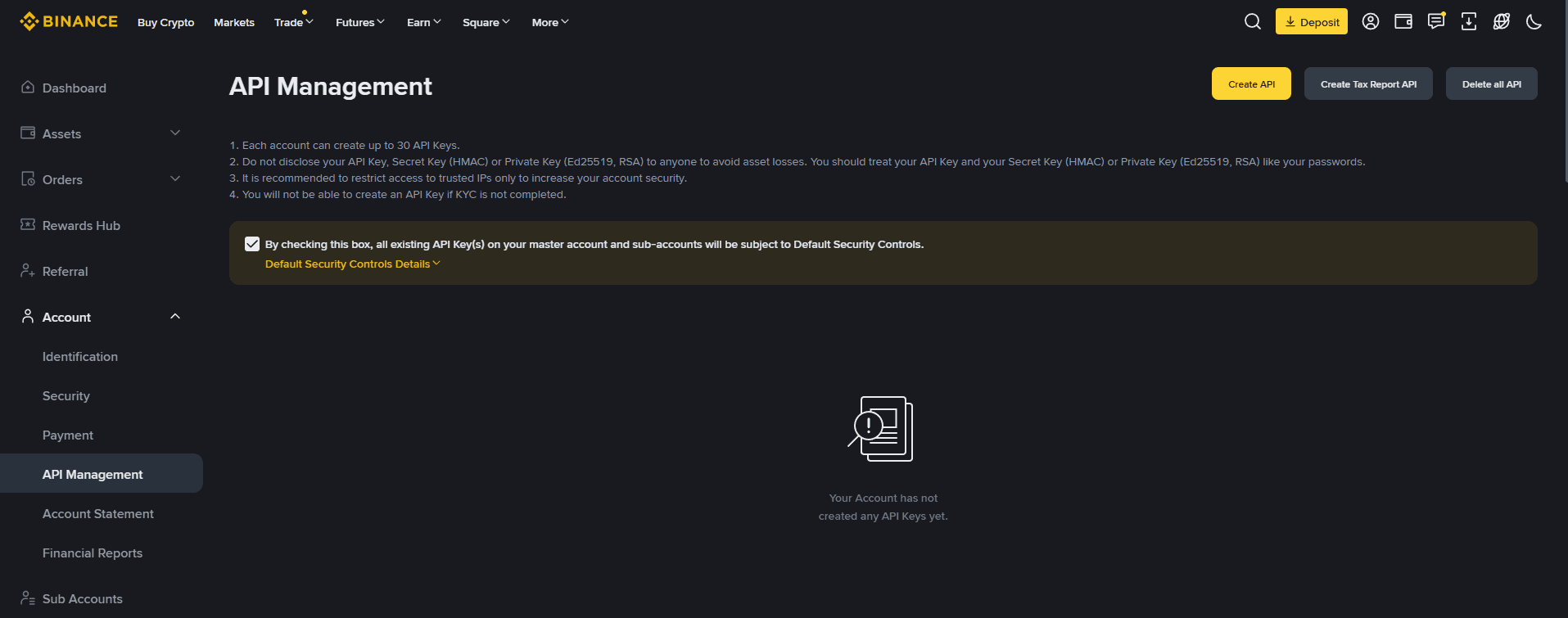
Step 1: Open the API Management section
- Log in to your account at binance.com
- Click the Profile/Account icon in the top right corner.
- In the dropdown menu, select API Management.
Step 2: Create a new API key
- Click the Create API button.
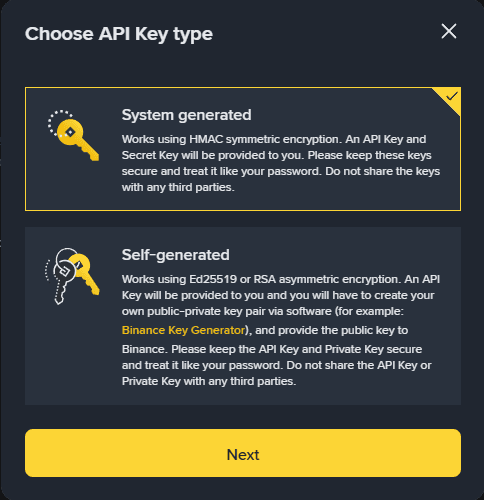
- Select the key type: System Generated and click Next.
- Set a label for the key, for example, "Trading".
- Complete the security verification: solve the puzzle and enter the confirmation codes sent to your email and/or phone. If you have Google Authenticator set up, enter the code from the app.
- After confirmation, your API key will be created.
Tip: Use a clear label so you can easily identify the key's purpose later.
Step 3: Configure API key permissions
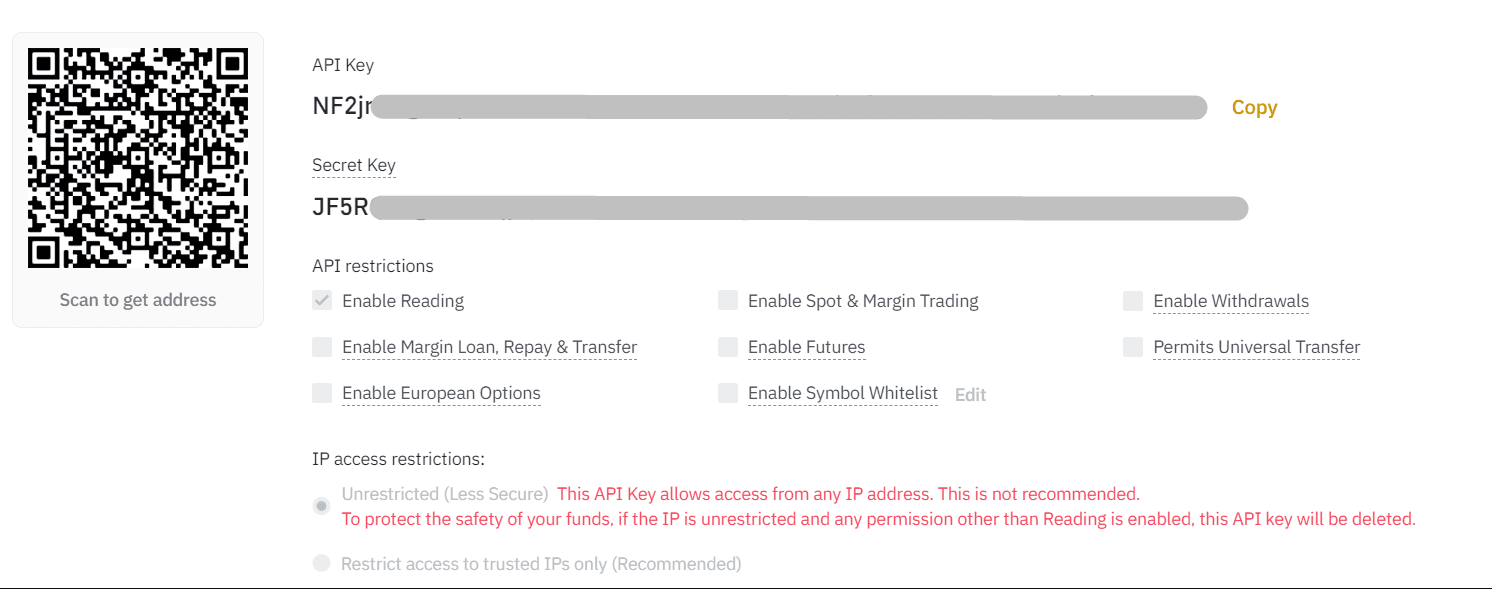
After creating the key, click Edit Restrictions. Configure the following settings:
1. IP address restrictions
- Select Restrict access to trusted IPs only.
- Add the trusted server IP address: 51.77.133.116
- Click Confirm.
2. Trading permissions
- Enable Reading
- Enable Futures
Do NOT enable Enable Withdrawals. This permission is not required and may compromise the security of your funds.
Click Save to apply the settings.
Step 4: Copy your keys
After saving the settings, you will be shown two keys:
- API Key: public key.
- Secret Key: private key.
The Secret Key is displayed only once. Make sure to copy and save it immediately. You will not be able to see it again after leaving the page.
Step 5: Add the API key to the service
- Go to the account connection section in our service.
- Select the Binance exchange.
- Paste the API Key and Secret Key into the corresponding fields.
- Click Save.
If the key was entered correctly and the permissions are configured properly, the account will be successfully connected. If you encounter an error, make sure the API Key and Secret Key are correct, and verify the permission and IP address settings.
What is an API Key?
API (Application Programming Interface) is an interface that allows applications to communicate with each other. It enables two applications to "see" and "interact" with one another.
API Key is a unique identifier that links your exchange account to an external service. It consists of two parts:
- API Key (public key) identifies you as a user, similar to an email address.
- Secret Key (private key) confirms that requests are sent by you. This key must never be shared with third parties.
Security
When creating an API key, it is important to follow security best practices:
- Limit permissions: only enable the permissions you actually need (reading and trading). Never enable withdrawal permissions.
- Restrict to IP addresses: limit API key access to trusted IP addresses only.
- Keep your secret key safe: do not send it via email, messengers, or any unsecured channels.
- The secret key is shown only once: save it immediately in a secure place. You won't be able to see it again after leaving the page.
- Enable 2FA: activate two-factor authentication on your exchange account for additional protection.